
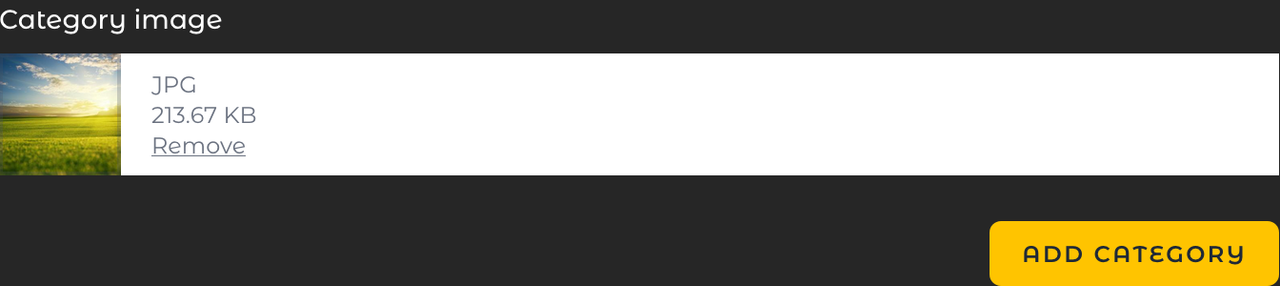
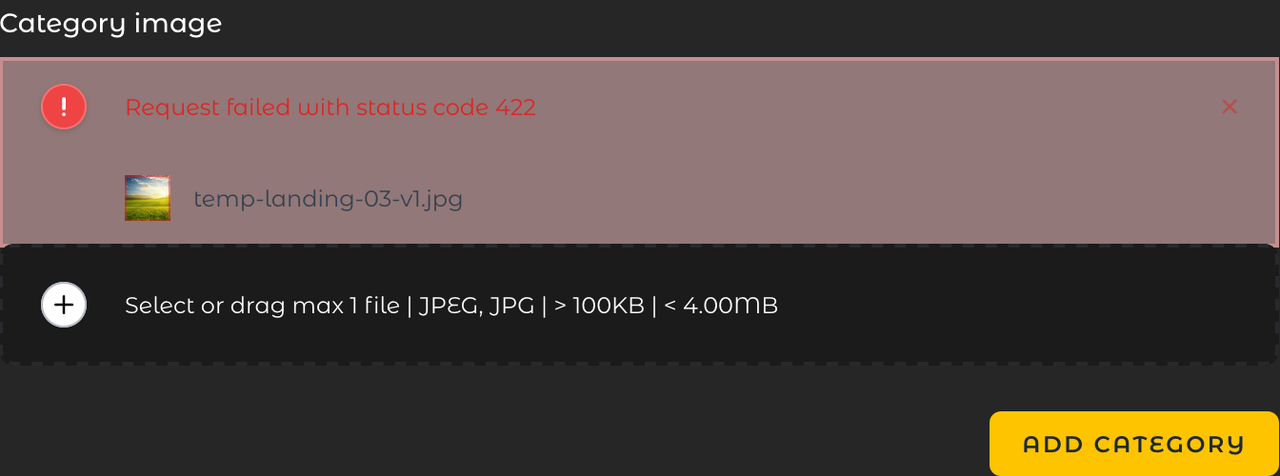

The 422 Unprocessable Entity error typically indicates that the server understands the content type of the request entity, but was unable to process the contained instructions. In the context of file uploads, this often points to issues with validation or file handling on the server side.
Here are some steps to troubleshoot and resolve the issue:
-
Check Validation Rules: Ensure that the validation rules for the file upload are correctly set up and that they match the file types and sizes you are trying to upload.
-
Check Server Configuration: Sometimes, server configurations can differ between local and production environments. Ensure that your server has the necessary permissions and configurations to handle file uploads.
-
Check Disk Configuration: Verify that the disk configuration in your
config/filesystems.phpis correctly set up and that the storage paths are writable. -
Check Media Library Configuration: Ensure that the Media Library configuration in
config/media-library.phpis correctly set up and that the media collections are properly defined. -
Check Network Issues: Sometimes, network issues or firewalls can interfere with file uploads. Ensure that there are no network restrictions that could be causing the issue.
-
Check Laravel Logs: Check the Laravel logs (
storage/logs/laravel.log) for any additional error messages that might provide more context about the issue.
Here is a step-by-step approach to debug and potentially resolve the issue:
Step 1: Validate File Uploads
Ensure that your file upload validation rules are correctly set up in your controller. For example:
public function store(Request $request)
{
    $request->validate([
        'file' => 'required|mimes:jpg,jpeg,png|max:2048', // Adjust the rules as needed
    ]);

    // Handle the file upload
}
Step 2: Check Disk Configuration
Ensure that your disk configuration in config/filesystems.php is correctly set up. For example:
'disks' => [
    'public' => [
        'driver' => 'local',
        'root' => storage_path('app/public'),
        'url' => env('APP_URL').'/storage',
        'visibility' => 'public',
    ],
    // Other disk configurations...
],
Step 3: Check Media Library Configuration
Ensure that your Media Library configuration in config/media-library.php is correctly set up. For example:
'media_library' => [
    'disk_name' => 'public', // Ensure this matches your disk configuration
    // Other configurations...
],
Step 4: Check Laravel Logs
Check the Laravel logs for any additional error messages:
tail -f storage/logs/laravel.log
Step 5: Debugging the Vue Component
Ensure that the Vue component is correctly set up to handle file uploads. For example:
<template>
  <div>
    <MediaLibraryAttachment
      :collection="collection"
      :model="model"
      @media-uploaded="handleMediaUploaded"
    />
  </div>
</template>

<script>
export default {
  data() {
    return {
      collection: 'categories',
      model: this.$props.model,
    };
  },
  methods: {
    handleMediaUploaded(media) {
      console.log('Media uploaded:', media);
    },
  },
};
</script>
Step 6: Check Server Permissions
Ensure that the server has the necessary permissions to handle file uploads. For example, ensure that the storage directory is writable:
chmod -R 775 storage
Step 7: Check Network Issues
Ensure that there are no network restrictions or firewalls that could be causing the issue.
By following these steps, you should be able to identify and resolve the issue causing the 422 error when uploading files using the Spatie Media Library Pro Vue component. If the issue persists, consider providing more detailed error logs or server configurations for further assistance.