Hello! Your development environment is probably not able to locate the manifest file that is generated by Vite. I'd suggest checking if the Vite project is built or configured properly. You could also check whether the manifest file is existing at the desired location. Don't forget to restart the server to see if the issue is resolved...
Vite manifest not found
Hi, I'm getting this message when I visit my login page (I'm still developing the page locally): "Vite manifest not found at: /home/desktop/Documents/die-shopy/public/build/manifest.json"
Grateful for your guidance.
Hi , I'm not seeing a folder with the name "build"/manifest.json inside the public folder
@Mamunsson Did you run npm run dev during development and npm run build to build your application?
@gych Thank you sir
@gych Hi, To install Breeze, I typed:
"composer require laravel/breeze --dev
php artisan breeze:install
php artisan migrate npm install npm run dev"
and followed the instructions, I remember having chosen for blade.
@Mamunsson Try to run npm run build that should create the build folder for you
I typed npm run build and got this:
"vite v5.1.6 building for production... ✓ 0 modules transformed. x Build failed in 62ms error during build: RollupError: Could not resolve entry module "resources/css/app.css". at getRollupError (file:///home/desktop/Documents/die-shopy/node_modules/rollup/dist/es/shared/parseAst.js:376:41) at error (file:///home/desktop/Documents/die-shopy/node_modules/rollup/dist/es/shared/parseAst.js:372:42) at ModuleLoader.loadEntryModule (file:///home/desktop/Documents/die-shopy/node_modules/rollup/dist/es/shared/node-entry.js:18912:20) at async Promise.all (index 0)"
@mamunsson Can you share your vite config file.
Did you install breeze for a new laravel application or did you try to install it in an existing application?
@gych Unfortunately I installed it for an existing project and later learned that I should have done this at the beginning.
@Mamunsson Yes indeed, installing Breeze in an existing project can cause a lot of issues. A better approach now would be to install it together with a fresh laravel installation and move parts of your existing project like controllers, models, migrations, views, etc. to the fresh installation.
@gych This is what I found inside the vite.config.js
import { defineConfig } from 'vite'; import laravel from 'laravel-vite-plugin';
export default defineConfig({ plugins: [ laravel({ input: ['resources/css/app.css', 'resources/js/app.js'], refresh: true, }), ], });
@Mamunsson You can attempt to fix the first error but there's a big chance that after this you'll get other issues that will also need to be fixed. Breeze installation also overwrites some files so check your views and route files to make sure that you did not lose any of your previously added code.
Your vite config looks good. When you go to the resources/css folder does the app.css file exist?
@gych The app.css does not exit. I just created a fresh installation now and will install Breeze
@Mamunsson Ok that's the cause of the error you're getting.
I typed composer require laravel/breeze --dev everything went well and then I typed: php artisan breeze:install and got this message: Could not open input file: artisan
I'm not sure if I should have cleared my terminal first before typing php artisan breeze:install
@Mamunsson Is your terminal pointing to the right folder ? Maybe the terminal is not inside the folder of your laravel application which would give you this error.
@gych I use VS Code and opened the VS Code terminal in the laravel application. I'm a Linux user btw.
@mamunsson And is the terminal inside the the right folder?
Try to use cd name-of-your-laravel-app-folder
When you install laravel via the terminal it creates a new folder for the laravel project the terminal will be one folder up from the created laravel folder. After installation you have to use cd to navigate the terminal inside of the created folder. Did you do this?
@gych Here is how I did it, I created a folder inside the main documents folder in Linux and gave it the name "dieshopy". I then opened VS Code and the folder I created. I started the terminal and typed: composer create-project --prefer-dist laravel/laravel dieshopy and laravel was installed successfully. I then cleared the terminal and typed: composer require laravel/breeze --dev and it went well. I then typed: php artisan breeze:install and got the error.
@Mamunsson Did you open the folder dieshopy or the folder where you created the app with folder name dieshopy
@gych In VS Code I opened the folder dieshopy. Update: I now created a new folder and named it "multivendorshop" and installed laravel by typing: composer create-project laravel/laravel:^10.0 multivendorshop I then opened a new terminal in vs code and typed: composer require laravel/breeze --dev and the installation went successfully. Shall I open a new terminal and type php artisan breeze:install or is this unnecessary?
Ok but before you ran composer require laravel/breeze --dev did you confirm that the terminal was opened for the correct folder.
When you run pwd in the terminal, does it output multivendorshop
If it does you can continue with running php artisan breeze:install and follow the next steps.
It see that laravel breeze was installed because I'm getting this message Using version ^2.0 for laravel/breeze but when I typed: php artisan breeze:install I got "Could not open input file: artisan"
Shall I try to run "npm install" instead of php artisan breeze:install?
@Mamunsson No don't run npm install yet, you should run it after php artisan breeze:install has been successfully executed
I tried running php artisan breeze:install and got " ERROR There are no commands defined in the "breeze" namespace. "
@Mamunsson Ok because your terminal was not inside of the laravel app when you used composer require laravel/breeze --dev breeze was not successfully added to the vendor files of your laravel project.
Check your folders it might be possible that a vendor file has been created outside of your laravel app folder.
When you are inside the laravel folder run composer require laravel/breeze --dev
Then after that php artisan breeze:install
@gych I tried and got "Could not open input file: artisan"
@Mamunsson Ok can you make a screenshot of when you're in vs code with the folders and terminal open. Then upload it to something like imgur and share the link here.
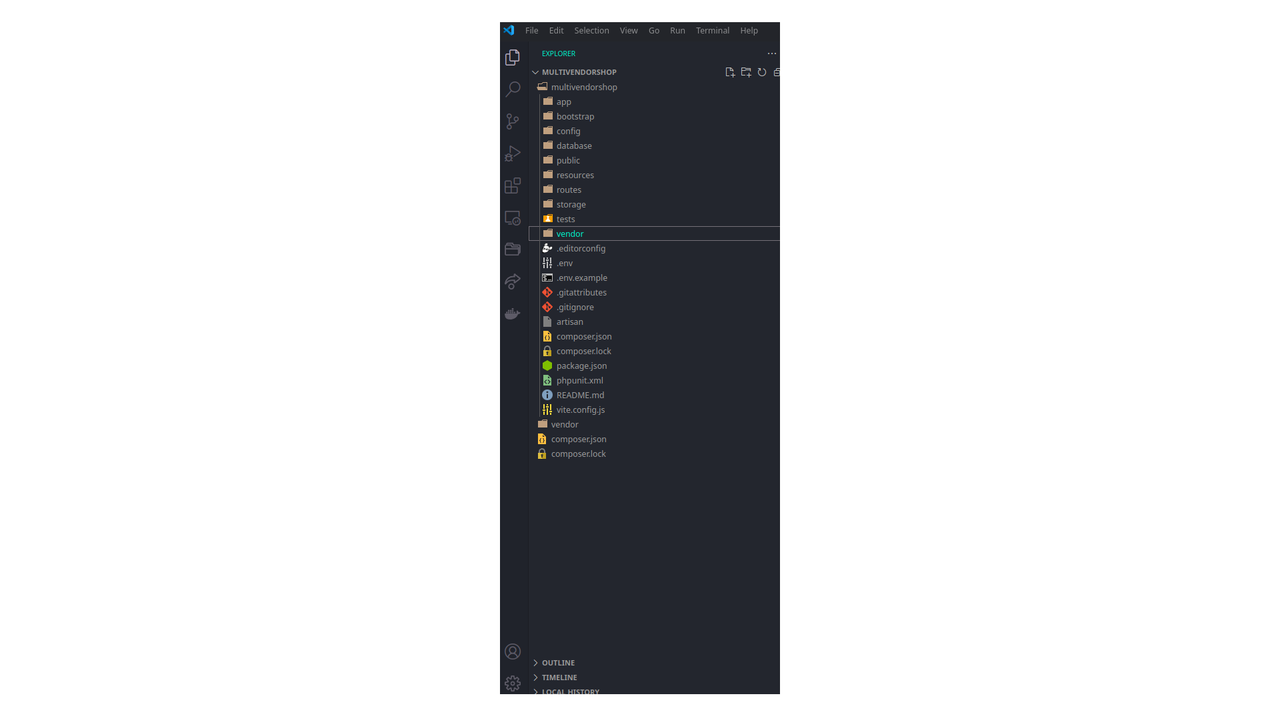
@gych This is the link to the screenshot: https://i.postimg.cc/TwL9V6Cq/Untitled.png
@Mamunsson Oke so in the screenshot you can see at the bottom that there is a vendor folder with composer.json and composer.lock files outside of your project folder.
Which means that you ran composer require laravel/breeze --dev from the terminal when the terminal was not pointing to the multivendorshop folder.
If your terminal is not inside that folder the php artisan commands will also not work.
Your terminal should show in which folder it is located but you can also run pwd in the terminal to verify that.
When the terminal is correctly pointing to the multivendorshop folder you can run composer require laravel/breeze --dev and after that php artisan breeze:install
I also see that you created a multivendorshop folder and in that folder you installed the laravel project which also creates a multivendorshop folder in that folder. Which makes it confusing because both folders have the same name. Therefor your terminal will display that you're in the multivendorshop folder but you're propably still in the multivendorshop folder that you initially created before installing the laravel app.
@gych Many thanks for your support, what is the best way to create the laravel project then?
@Mamunsson Delete the main multivendorshop folder
Create a new folder or select an existing folder where you want to install the laravel application. When you create a new folder don't give it the same name as your laravel application.
Install laravel
composer create-project laravel/laravel:^10.0 multivendorshop
Laravel has now been installed and the installation created a new folder multivendorshop
Now use cd multivendorshop to navigate your terminal to the laravel application
After that run composer require laravel/breeze --dev
Then run php artisan breeze:install
After Breeze is successfully installed run php artisan migrate and npm install
@gych It seems everything is good now:
"INFO Breeze scaffolding installed successfully.
desktop@dynamic-pd01:~/multivendorshop> php artisan migrate
INFO Nothing to migrate.
desktop@dynamic-pd01:~/multivendorshop> npm install
up to date, audited 145 packages in 1s
36 packages are looking for funding
run npm fund for details
found 0 vulnerabilities desktop@dynamic-pd01:~/multivendorshop> "
@Mamunsson Ok good did you already run the migrations once before or are you using the same database as your previous application?
The problem is that I can't post a screenshot here to show you the folder structure
When I open the VS Code terminal, I get this: desktop@dynamic-pd01:~/Documents/multivendorshop>
@Mamunsson Ok that's good, now try to run php artisan breeze:install
@gych This how it looks inside the vs cod terminal: desktop@dynamic-pd01:/Documents/multivendorshop> php artisan breeze:install Could not open input file: artisan desktop@dynamic-pd01:/Documents/multivendorshop>
I also see two vendor folders, one inside the multivendor folder and one outside of it. Like this:
MULTIVENDORSHOP multivendorshop /vendor vendor composer.json composer.lock
@Mamunsson when you run composer create project it will create a folder with the name you give.
So if you create multivendorshop and switch to it then run the create project you will have documents/multivendorshop/multivendorshop
Just create project from your root folder for your projects and then cd to that folder after install and THEN run your composer require, breeze install etc
@Snapey Many thanks.
I configured the database connection in the .env file, do I need to run database migrations first or can I go ahead at this stage and run: composer require laravel/breeze --dev
It is now asking me to choose between PHPUnit and Pest Not sure which one to choose
@Mamunsson Pest and PHP unit are both used to test your laravel application. Pest is build on top of PHP Unit and the syntax between them is a bit different. Personally I prefer to use PHP Unit.
You could select PHP Unit and in the future you can always move to Pest if you prefer.
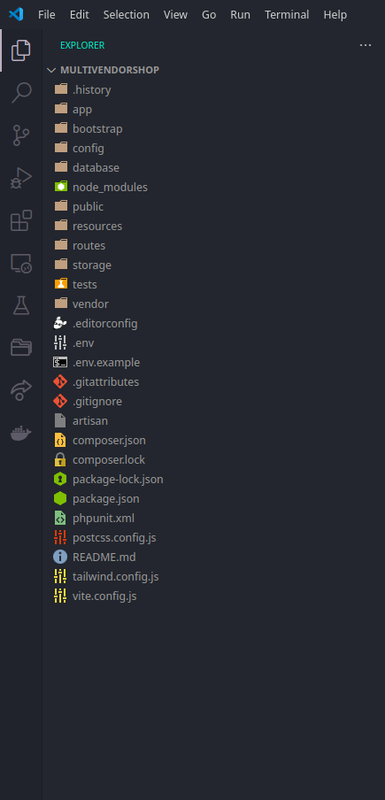
@gych Thanks. This is how it looks now in VS Code: https://i.postimg.cc/C5V86v39/Screenshot-20240322-235407.png
@Mamunsson That looks good, if you're all set and everything works as expected don't forget to close your thread by selecting the best answer.
If you have any other questions don't hesitate to reach out
@gych Many thanks indeed. One more question: When I typed npm run dev I got this:
desktop@dynamic-pd01:~/multivendorshop> npm run dev
dev vite
VITE v5.2.3 ready in 477 ms
➜ Local: http://localhost:5173/ ➜ Network: use --host to expose ➜ press h + enter to show help
LARAVEL v10.48.4 plugin v1.0.2
➜ APP_URL: http://localhost 11:58:01 PM [vite] .env changed, restarting server... 11:58:02 PM [vite] server restarted.
LARAVEL v10.48.4 plugin v1.0.2
➜ APP_URL: http://localhost
When I clicked on the localhost link, the browser page says: Error establishing a database connection. I'm pretty sure the database values are correct since it was working in the previous laravel installation.
@Mamunsson Did you copy the whole env file from the other project? Or just copied the db credentials?
@gych I think I copied the entire .env file from the other project. I did run php artisan serve and it worked, I can see the laravel welcome page
Did you also run php artisan serve?
I was able to see a page display data I entered in the database, so this is a good indication. I was able to retrieve the old .env file using the timeline functionality in VS Code and I just entered these: APP_NAME=multivendorshop DB_DATABASE=testing DB_USERNAME=root DB_PASSWORD= developer
@Mamunsson Ok and which results do you get now?
After running npm run dev and php artisan serve try to open the application with this URL http://localhost:8000/
Does this work?
@gych http://localhost:8000/ does work and I see the laravel welcome page but http://localhost/ which is the link provided in the terminal after running npm run dev returns Error establishing a database connection
@Mamunsson That link is propably wrong and its because this is set in your env file. Change APP_URL in the env file to this APP_URL=http://127.0.0.1:8000/
dev vite
Port 5173 is in use, trying another one...
VITE v5.2.3 ready in 609 ms
➜ Local: http://localhost:5174/ ➜ Network: use --host to expose ➜ press h + enter to show help
LARAVEL v10.48.4 plugin v1.0.2
➜ APP_URL: http://localhost node:internal/errors:496 ErrorCaptureStackTrace(err); ^
Error: ENOSPC: System limit for number of file watchers reached, watch '/home/desktop/multivendorshop/vendor/sebastian/diff/src/Exception/Exception.php' at FSWatcher. (node:internal/fs/watchers:247:19) at Object.watch (node:fs:2418:34) at createFsWatchInstance (file:///home/desktop/multivendorshop/node_modules/vite/dist/node/chunks/dep-Bh2jsKCM.js:44286:17) at setFsWatchListener (file:///home/desktop/multivendorshop/node_modules/vite/dist/node/chunks/dep-Bh2jsKCM.js:44333:15) at NodeFsHandler._watchWithNodeFs (file:///home/desktop/multivendorshop/node_modules/vite/dist/node/chunks/dep-Bh2jsKCM.js:44488:14) at NodeFsHandler._handleFile (file:///home/desktop/multivendorshop/node_modules/vite/dist/node/chunks/dep-Bh2jsKCM.js:44552:23) at NodeFsHandler._addToNodeFs (file:///home/desktop/multivendorshop/node_modules/vite/dist/node/chunks/dep-Bh2jsKCM.js:44794:21) Emitted 'error' event on FSWatcher instance at: at FSWatcher._handleError (file:///home/desktop/multivendorshop/node_modules/vite/dist/node/chunks/dep-Bh2jsKCM.js:45987:10) at NodeFsHandler._addToNodeFs (file:///home/desktop/multivendorshop/node_modules/vite/dist/node/chunks/dep-Bh2jsKCM.js:44802:18) { errno: -28, syscall: 'watch', code: 'ENOSPC', path: '/home/desktop/multivendorshop/vendor/sebastian/diff/src/Exception/Exception.php', filename: '/home/desktop/multivendorshop/vendor/sebastian/diff/src/Exception/Exception.php' }
Node.js v18.19.1 desktop@dynamic-pd01:~/multivendorshop>
So this http://127.0.0.1:8000/ and this http://localhost:8000/ work fine
@Mamunsson Do you have another watcher running somewhere on your machine? That's where this error is about.
So everything works fine when you use this link? http://localhost:8000/
@gych I'm not aware of any watcher, and I uninstalled the VS Code plugin that keeps a history of changes made. Yes, the http://localhost:8000/ works fine and takes me to the laravel welcome page and I'm also able to access the other pages I created in the previous installation.
@Mamunsson Ok good, since you were not getting this error before I think a previous instance of vite watcher that was started with npm run dev is still active. To solve this the easiest is to try and restart you pc to see if that removes the error.
@gych I restarted the computer and when I visit http://localhost I get "Error establishing a database connection". This is the content of the .env file:
APP_NAME=Laravel APP_ENV=local APP_KEY=base64:S27+IFbDInbC52Wu0NKSkk303qOToCpwUn8A0VoZMHE= APP_DEBUG=true APP_URL=http://localhost
LOG_CHANNEL=stack LOG_DEPRECATIONS_CHANNEL=null LOG_LEVEL=debug
DB_CONNECTION=mysql DB_HOST=127.0.0.1 DB_PORT=3306 DB_DATABASE=tester DB_USERNAME=root DB_PASSWORD= developer
BROADCAST_DRIVER=log CACHE_DRIVER=file FILESYSTEM_DISK=local QUEUE_CONNECTION=sync SESSION_DRIVER=file SESSION_LIFETIME=120
MEMCACHED_HOST=127.0.0.1
REDIS_HOST=127.0.0.1 REDIS_PASSWORD=null REDIS_PORT=6379
MAIL_MAILER=smtp MAIL_HOST=mailpit MAIL_PORT=1025 MAIL_USERNAME=null MAIL_PASSWORD=null MAIL_ENCRYPTION=null MAIL_FROM_ADDRESS="[email protected]" MAIL_FROM_NAME="${APP_NAME}"
AWS_ACCESS_KEY_ID= AWS_SECRET_ACCESS_KEY= AWS_DEFAULT_REGION=us-east-1 AWS_BUCKET= AWS_USE_PATH_STYLE_ENDPOINT=false
PUSHER_APP_ID= PUSHER_APP_KEY= PUSHER_APP_SECRET= PUSHER_HOST= PUSHER_PORT=443 PUSHER_SCHEME=https PUSHER_APP_CLUSTER=mt1
VITE_APP_NAME="${APP_NAME}" VITE_PUSHER_APP_KEY="${PUSHER_APP_KEY}" VITE_PUSHER_HOST="${PUSHER_HOST}" VITE_PUSHER_PORT="${PUSHER_PORT}" VITE_PUSHER_SCHEME="${PUSHER_SCHEME}" VITE_PUSHER_APP_CLUSTER="${PUSHER_APP_CLUSTER}"
http://127.0.0.1:8000/ and this http://localhost:8000/ both work just fine.
@Mamunsson Yes its because APP_URL in your ENV file has the wrong value
change this APP_URL=http://localhost to this APP_URL=http://localhost:8000 in the env file
@gych That did it indeed. desktop@dynamic-pd01:~/multivendorshop> npm run dev
dev vite
VITE v5.2.3 ready in 459 ms
➜ Local: http://localhost:5173/ ➜ Network: use --host to expose ➜ press h + enter to show help
LARAVEL v10.48.4 plugin v1.0.2
➜ APP_URL: http://localhost:8000
Many thanks for your support.
I don't see an option to mark the thread as solved.
@Mamunsson I'm glad I could help :)
To mark a thread as solved you click on the 3 dots in the right bottom corner in one of my replies and then select that as best answer.
@gych The 3 dots in the right bottom corner show Report spam.
@Mamunsson just hover over the post and the 'best answer' button appears
@Snapey Thanks for the info
I also have a question, I used this command to create a project composer create-project laravel/laravel:^10.0 multivendorshop but I just looked at the Laravel docs and saw that the new command is composer create-project laravel/laravel:^11.0 example-app how can I upgrade to version 11.0 without messing up the project now that I've transferred my files from the old project to the new one.
@Mamunsson Since your previous project was created in L10 it was best to create a fresh application with L10 to avoid issues and more confusion. It also depends on how advanced your previous existing application was.
If you follow this upgrade guide you can upgrade from L10 to L11 https://laravel.com/docs/11.x/upgrade
I found this tutorial to be very useful: https://www.youtube.com/watch?v=72kpHjPiQBQ
@Mamunsson Yes you could also follow a specific tutorial
It seems like you accidently marked snapey's reply as best answer, change it please.
@gych Many thanks. I went through the docs and tested my application and it seems to be working fine. So far, I have created several blade files, routes, controllers and two model files. I've also connected the application to a MySQL database.
@Mamunsson Ok great now please mark your thread as solved by selecting the best answer for this thread. The best answer should be the reply that gave you the best advise to solve your initial issue.
@gych Many thanks for the great guidance and support.
Please or to participate in this conversation.